> For the complete documentation index, see [llms.txt](https://docs.overtime.io/llms.txt). Markdown versions of documentation pages are available by appending `.md` to page URLs; this page is available as [Markdown](https://docs.overtime.io/deposits-and-withdrawals/deposit-from-exchange/deposit-usdc-or-usdt-from-binance/deposit-from-binance-mobile-app.md).
# Deposit from Binance Mobile App
How to deposit to Overtime from Binance Mobile
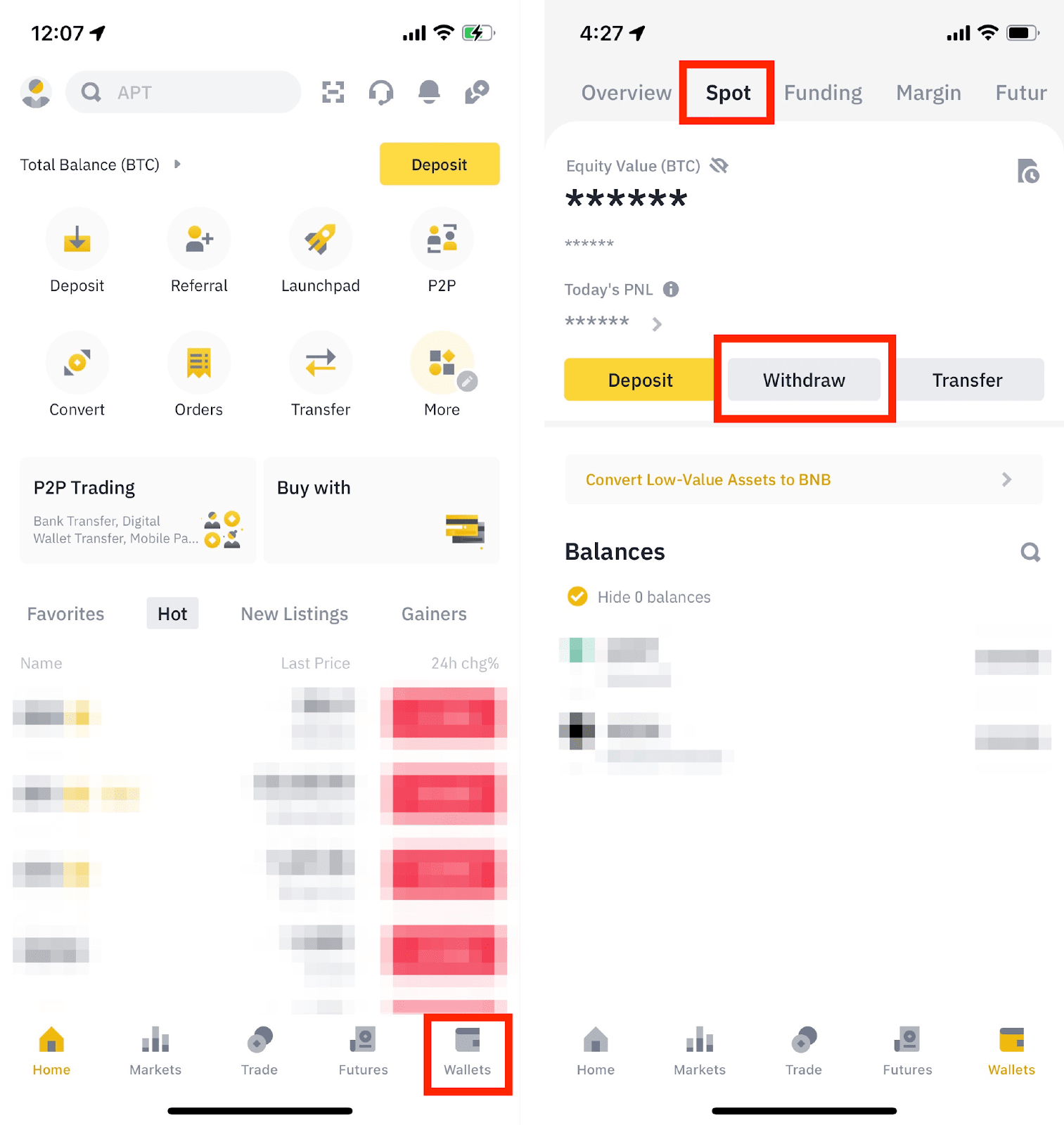
Log in to your Binance App and tap **\[Wallets]** - **\[Spot]** - **\[Withdraw]**.
2. Choose USDC or USDT (whichever of the two you own in your Binance account). Then, tap **\[Send via Crypto Network]**.
3. In the `Address` input field , paste the destination address copied from your Overtime Deposit page.
{% hint style="warning" %}
**Note that the address pictured below is just an example. Please only copy your own address, which is on the Overtime deposit page.**
{% endhint %}
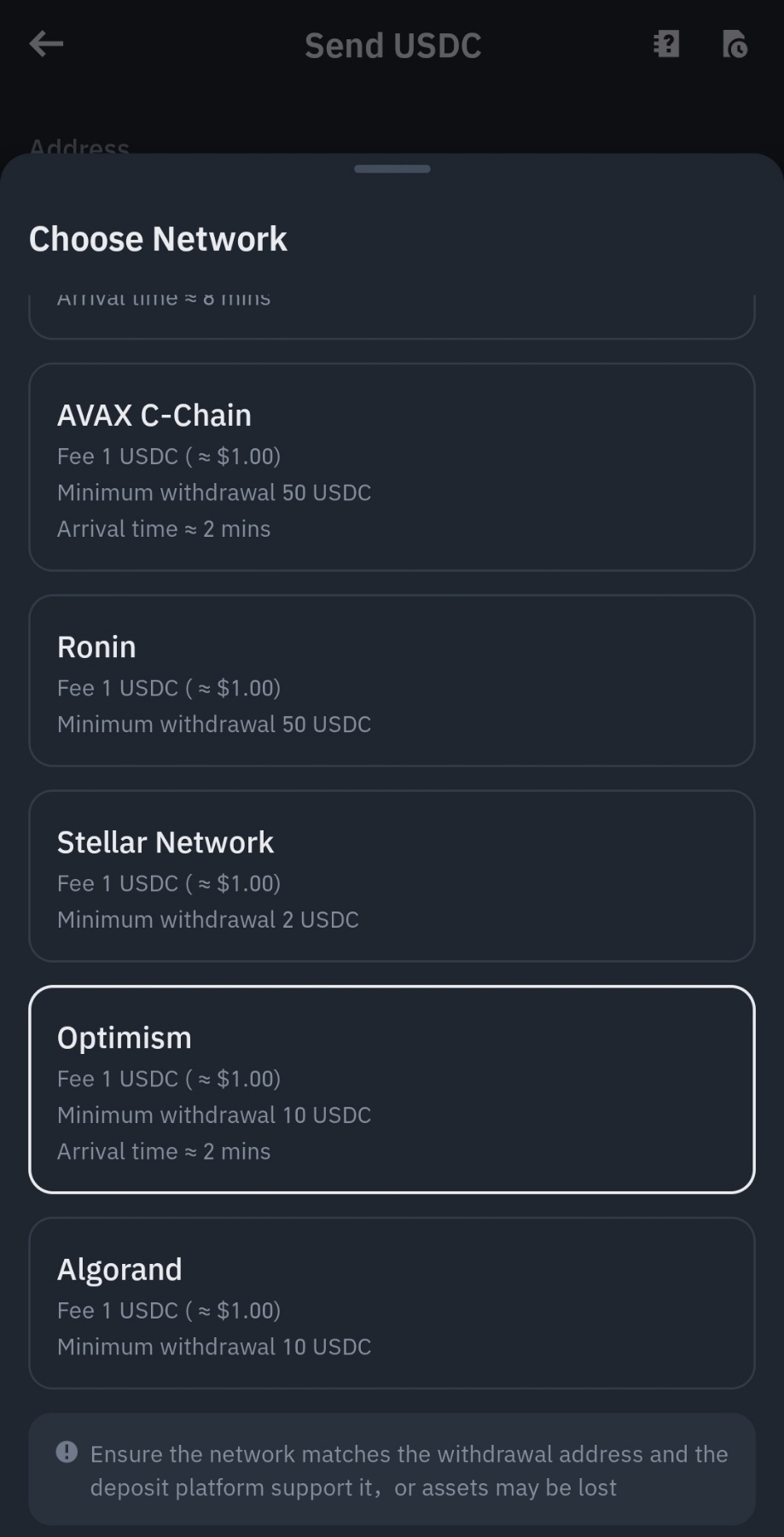
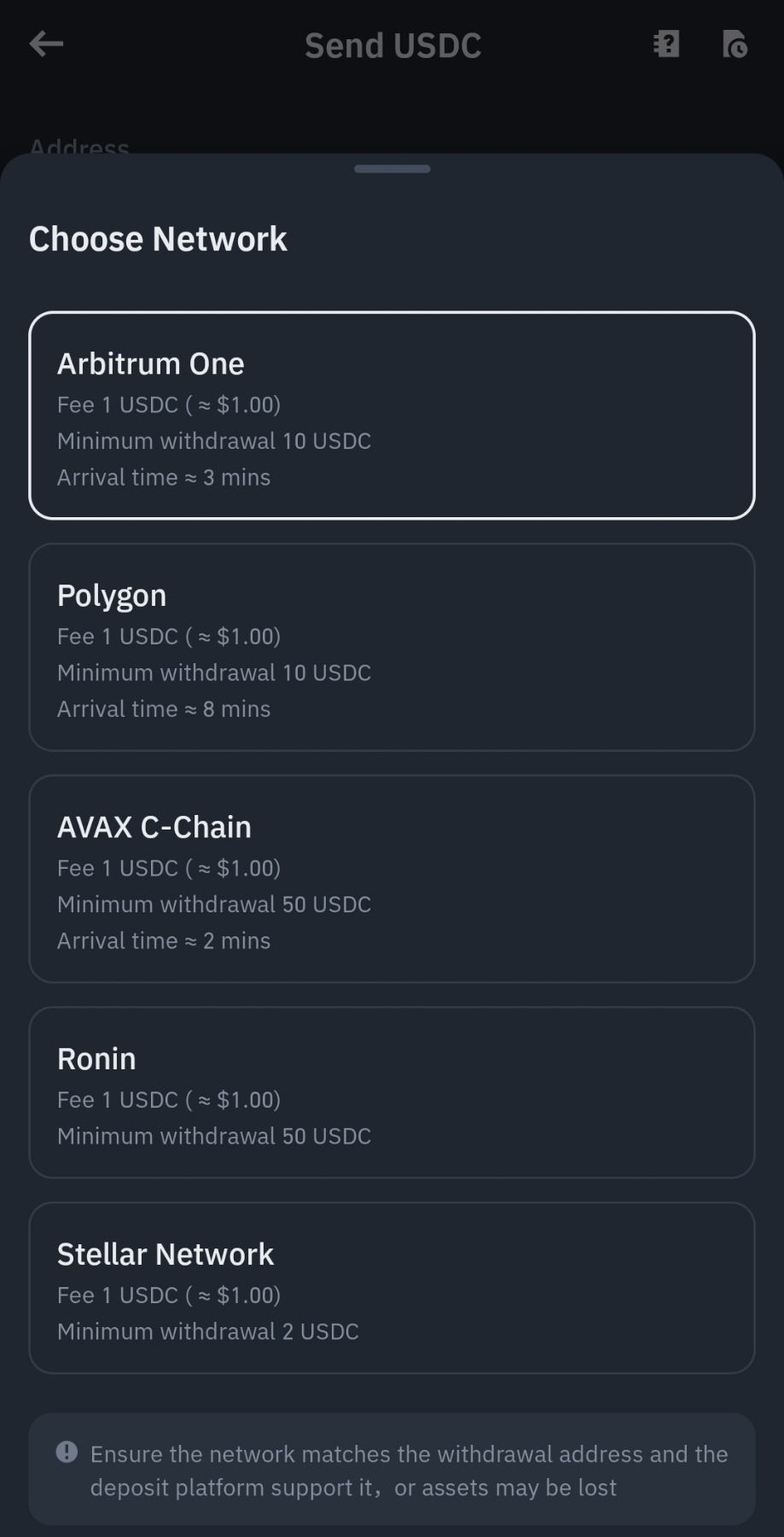
4. Select the network
{% hint style="danger" %}
Please choose the network carefully and **make sure that the selected network is**** ****OPTIMISM, ARBITRUM or BASE****.**
If you select the wrong network, your funds might be lost and couldn’t be recovered.
DO NOT select by looking for cheapest fee option. **Select the one that is compatible with the external platform.**
{% endhint %}
Optimism button
Arbitrum button
5. Enter the withdrawal amount and you will see the corresponding transaction fee and the final amount you will receive. You can also select which wallet to withdraw from by tapping **\[Spot & Funding Wallet].** Tap **\[Withdraw]** to proceed.
6. You will be prompted to confirm the transaction again. Please check carefully before tapping **\[Confirm]**.If you enter the wrong information or select the wrong network when making a transfer, your assets will be permanently lost. **Please make sure the information is correct before you confirm the transaction.**
7. Verify the transaction with your 2FA devices. After confirming the withdrawal request, please wait patiently for the transfer to be processed.
.png?alt=media&token=40d699e0-bf05-49ff-afec-3154fcfe145c)
.png?alt=media&token=610081fa-a934-4e3c-8d90-7a0a034d3e3e)
.png?alt=media&token=000f08c7-072e-49b3-b27c-c61773094755)